MSI GPU Safeguard+ x MSI Afterburner: Protect Your GPU by Reducing Power During Abnormal Current
Case & Components
MSI’s latest MPG Ai1600TS PCIE5 and MPG Ai1300TS PCIE5 power supplies feature GPU Safeguard+ technology. This allows real-time monitoring of the current on each individual pin of the 12V-2x6 cable. If an imbalance is detected, the power supply will beep and the MSI Center software will issue a warning, reminding you to check if the connector is properly plugged in or if the cable is faulty. If the issue persists, the power supply will shut off to protect your graphics card.
In addition to MSI Center, MSI GPU Safeguard+ also supports MSI Afterburner. When abnormal current is detected, MSI GPU Safeguard+ immediately notifies Afterburner to display a warning and automatically reduces the graphics card's Power Limit to 75% to keep it safe.
How to Reduce GPU Power Limit During Current Imbalance
Using the MPG Ai1600TS PCIE5 as an example, follow these steps to set it up:
- After installing Afterburner, go to the “Settings” and switch to the “Monitoring” tab. Load PSU.dll from the "Data provider" section.
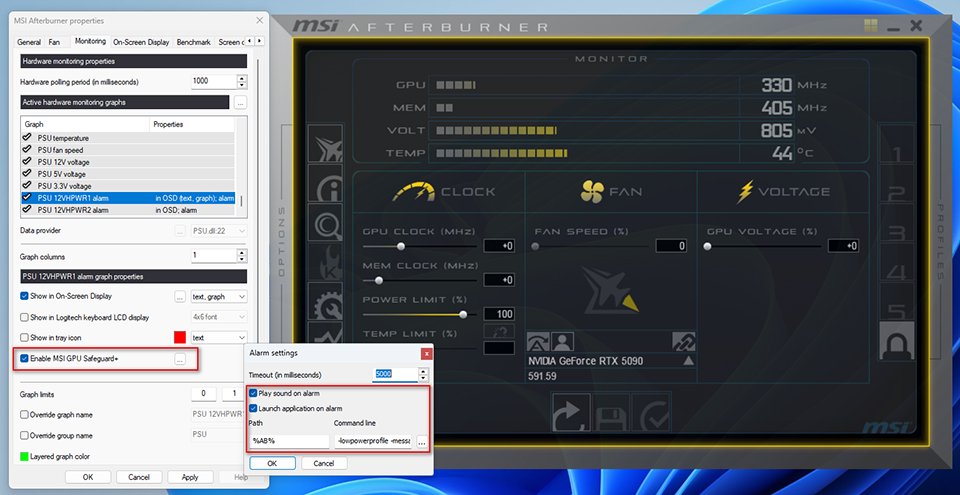
- In the “Monitoring” tab, select “PSU 12VHPWR1 alarm” or “PSU 12VHPWR2 alarm”, then check “Enable MSI GPU Safeguard+”.
- Click the button on the right, check “Launch Application on alarm”, and load the “lowpowerprofile” setting provided by Afterburner.
Once set up, if the power supply detects abnormal current, MSI GPU Safeguard+ will trigger a continuous beep and tell Afterburner to run the "lowpowerprofile", lowering the GPU's Power Limit to 75%.
Notes:
- The MPG Ai1600TS PCIE5 offers two 12V-2x6 connectors. If you are only using one, make sure the alarm in Afterburner (PSU 12VHPWR1 or PSU 12VHPWR2) matches the connector you are actually using.
- Please use MSI Afterburner v.4.6.7 or a newer version to support the MSI GPU Safeguard+ feature.
- If current is abnormal or imbalanced, shut down immediately. Check the 12V-2x6 connector installation and inspect the cables for any faults.
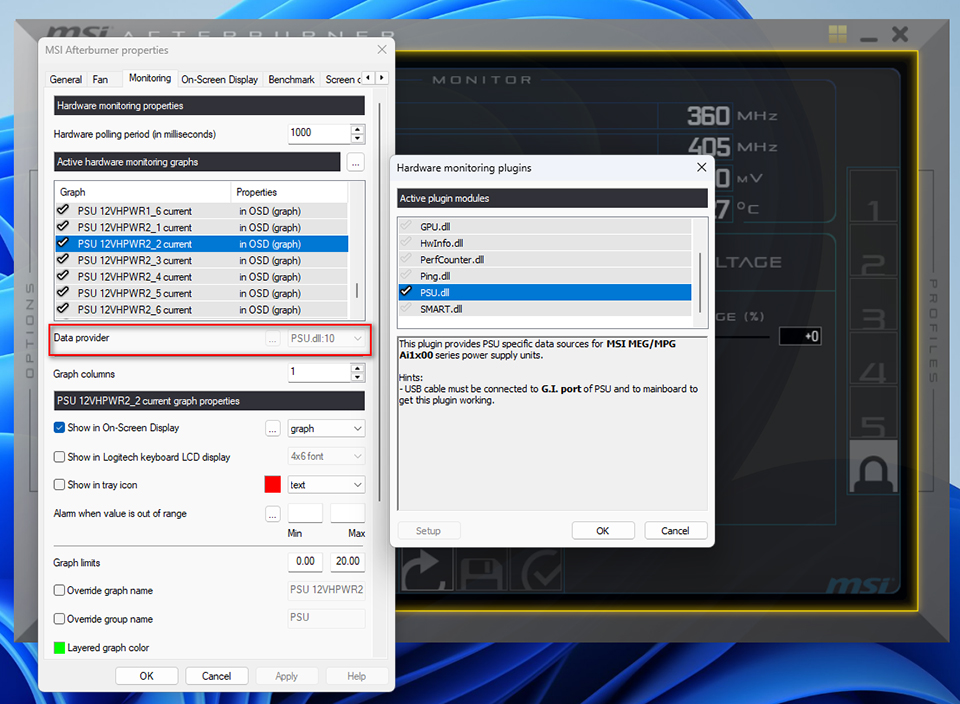
▲ You can enable MSI GPU Safeguard+ in the “Monitoring” tab to reduce the GPU's Power Limit when current between the 12V-2x6 pins is uneven.
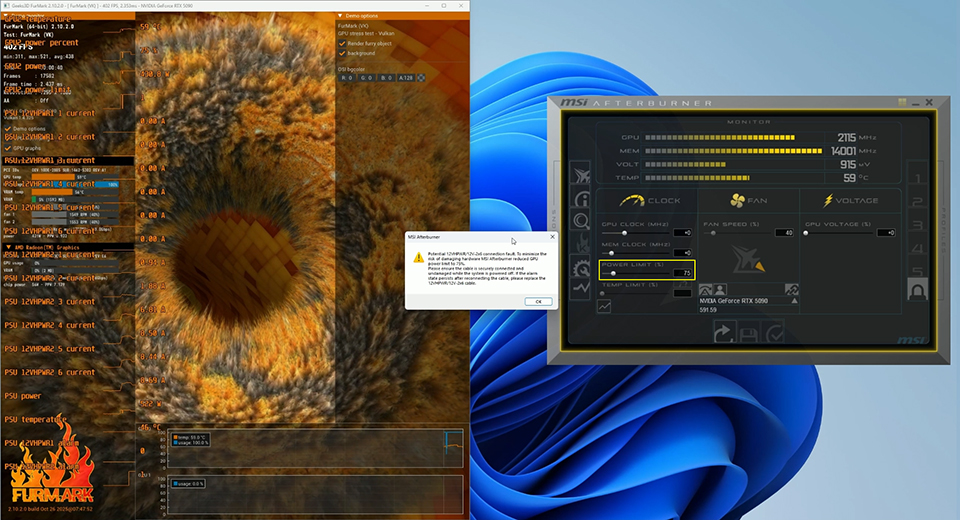
▲ When current imbalance is detected between pins, MSI GPU Safeguard+ tells Afterburner to lower the graphics card's Power Limit.
MSI GPU Safeguard+ Support List:
- MPG Ai1600TS PCIE5: https://www.msi.com/Power-Supply/MPG-Ai1600TS-PCIE5
- MPG Ai1300TS PCIE5: https://www.msi.com/Power-Supply/MPG-Ai1300TS-PCIE5
- MSI Afterburner v.4.6.7 or newer: https://www.msi.com/Landing/afterburner/graphics-cards