How to Undervolt AMD Ryzen 9 9950X3D2 Dual Edition to Lower Temperatures and Boost Performance
Motherboards
AMD Ryzen 9 9950X3D2 Dual Edition is the world's first desktop processor to feature AMD 3D V-Cache stacked on both CCDs, making it the flagship of AMD's consumer lineup. However, while delivering massive performance, its default TDP sits at a high 200W. Under heavy workloads, CPU temperatures can spike rapidly, which in turn throttles and limits its full performance potential.
In addition to pairing it with a high-performance liquid cooler, users can also manually lower the processor voltage via Curve Optimizer, or use the "PBO Enhanced Mode Boost" feature in MSI Click BIOS X to lower temperatures and boost performance with a single click. This article will guide you through both optimization methods.
Why Does Lowering Processor Voltage Improve Performance?
Lowering the core voltage, while maintaining system stability, effectively reduces heat output. More importantly, the AMD Precision Boost 2 algorithm dynamically adjusts clock speeds based on real-time temperature, power, and workload conditions. When core temperatures drop due to undervolting, Precision Boost 2 can sustain higher clock speeds for longer periods. This is why undervolting actually increases performance.
Method 1: Manually Tuning with Curve Optimizer
AMD Curve Optimizer allows users to apply a dynamic offset to the processor's voltage-frequency curve, enabling each frequency point to operate at a lower voltage while fully preserving the dynamic clock adjustments of Precision Boost. Inputting a negative value signifies undervolting; the larger the absolute value, the more significant the voltage reduction.
Tuning Modes: Since the Ryzen 9 9950X3D2 Dual Edition features two CCDs, users can choose from the following options:
- All Cores Mode: Applies the settings to all cores simultaneously.
- Per CCD Mode: Configures different values for CCD0 and CCD1 individually.
- Per Core Mode: Fine-tunes each individual core for precise optimization.
For detailed guides on Curve Optimizer, please refer to our article: How to Use Curve Optimizer to Lower Ryzen 9 9950X3D Temperatures and Boost Performance.
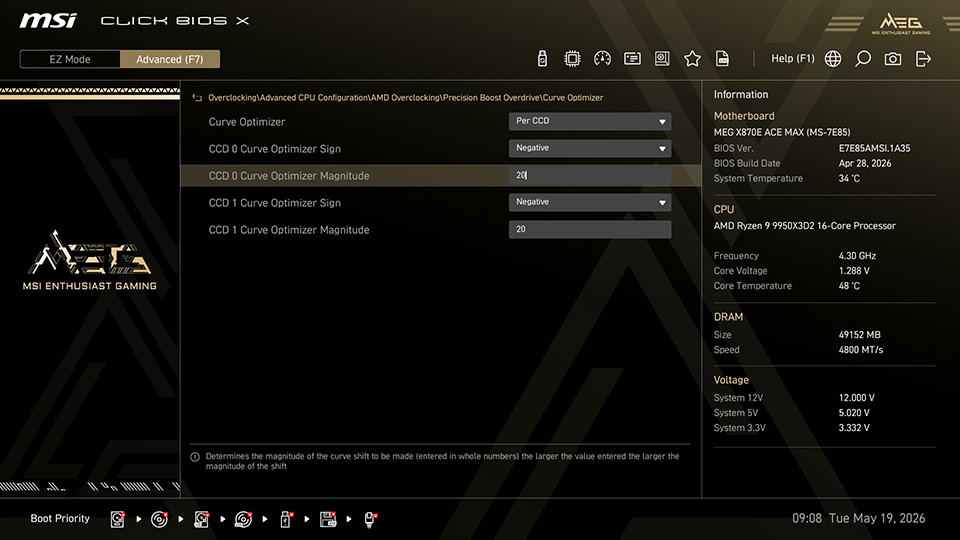
▲User can manually reduce CPU voltage via Curve Optimizer.
Method 2: MSI PBO Enhanced Mode Boost — One-Click Optimization
If you prefer not to spend hours for the optimal Curve Optimizer values, PBO Enhanced Mode Boost offers a much quicker and hassle-free choice. Users simply need to select their desired mode from the menu, and the system will automatically adjust the processor's voltage and temperature.
PBO Enhanced Mode Boost provides two preset profiles:
- Mode 1: Tests show an approximate 2% increase in Cinebench 2026 multi-core performance and around a 5% reduction in Blender rendering times.
- Mode 2: Pushes the undervolting and tuning limits further, delivering a 3% to 5% performance uplift in Cinebench 2026 and Blender.
Both modes deliver performance gains without increasing thermal output, and often slightly reducing it, making this the perfect solution for mainstream users who prefer not to dive deep into manual tweaking.
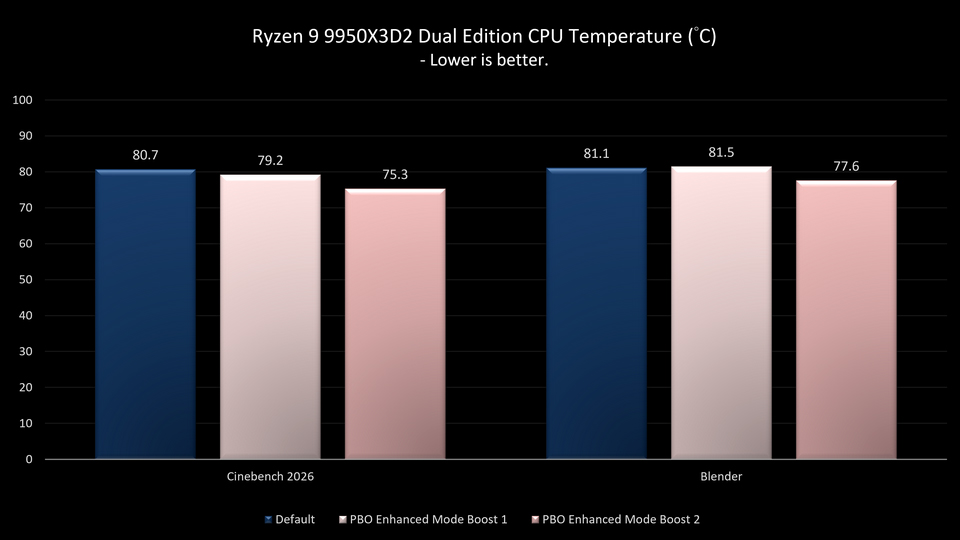
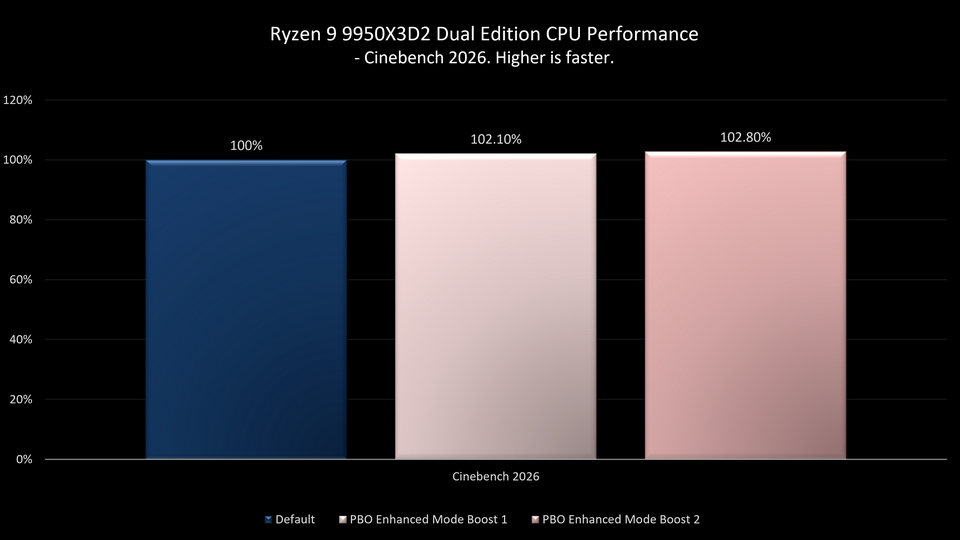
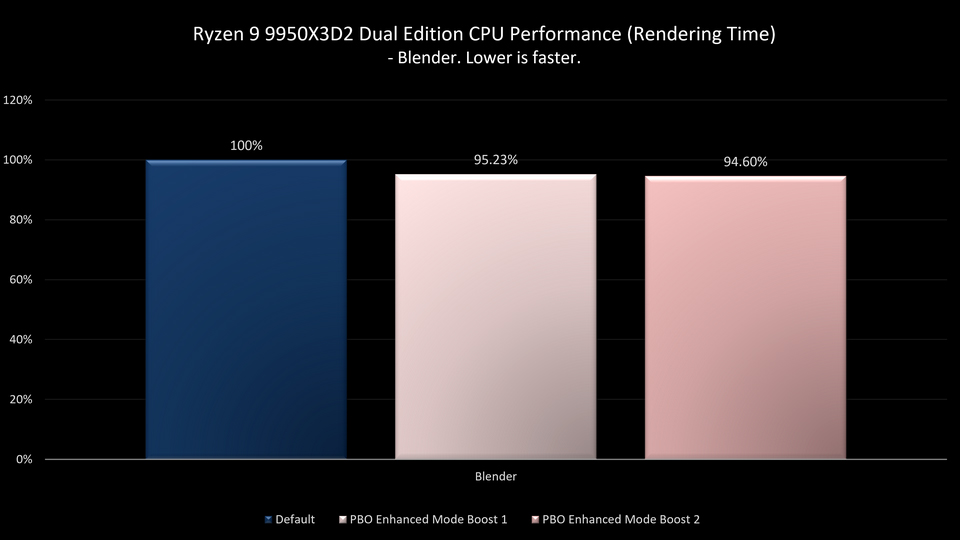
Frequently Asked Questions
Q: Is the optimal Curve Optimizer value the same for every processor?
A: No. Due to manufacturing variances in the silicon wafer, every processor has unique silicon quality. Users must perform their own stability testing to find the optimal values for their specific CPU.
Q: Will lowering the voltage with Curve Optimizer cause system instability?
A: It is possible. Excessive undervolting may lead to system instability. It is recommended to run stability tests after every adjustment.
Notes:
- Curve Optimizer and PBO Enhanced Mode Boost involve processor voltage adjustments and may lead to system instability.
- Stability varies depending on individual processor; gradual tuning and stability testing are recommended.
- Performance results may differ based on system settings and hardware configuration.
Test Bed
- Motherboard: MSI MEG X870E ACE MAX
- Memory: Kingston FURY Beast DDR5 16GB x2
- Graphics Card: MSI GeForce RTX 5090 32G VANGUARD SOC
- CPU Cooler: MSI MPG CORELIQUID P13 360
- Power Supply: MSI MEG Ai1300P PCIE5
- Operating System: Microsoft Windows 11 25H2
MSI X870E/X870/B850/B840 motherboards: https://www.msi.com/Landing/amd-am5-x870e-x870-b850-b840-ryzen-9000-x3d-best-ai-gaming-motherboard